Filtering Data Assets
The filtering functionality helps you narrow down the data assets list by applying specific criteria. Filters reduce the number of displayed results and help you focus on relevant assets.
To filter data assets
-
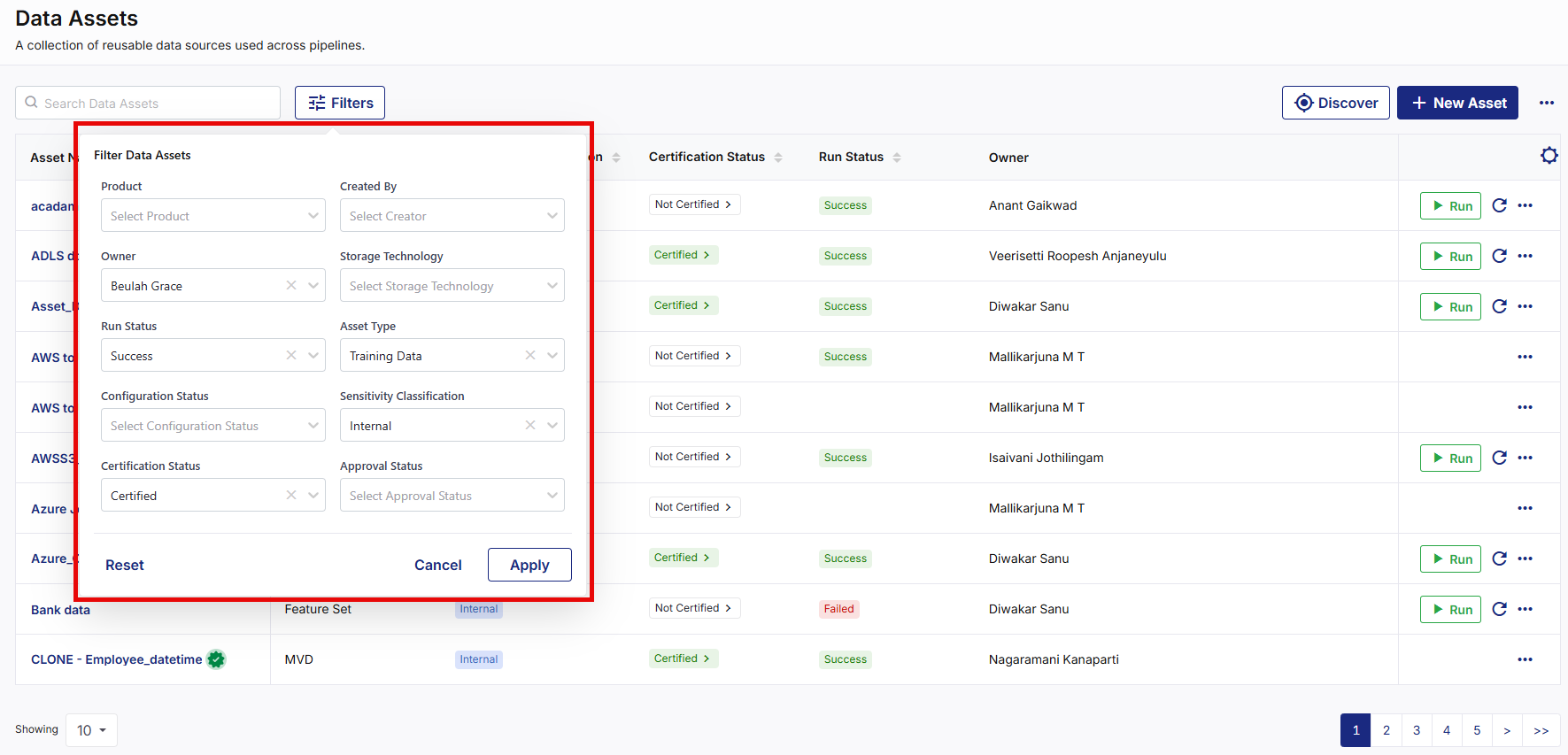
On the Data Assets screen, click Filters. The Filter Data Assets popup appears with all the available filter criteria.
-
The available filters vary depending on permissions and platform configuration such as:
-
Product
-
Owner
-
Created By
-
Storage Technology
-
Run Status
-
Asset Type
-
Configuration Status
-
Sensitivity Classification
-
Certification Status
-
Approval Status
-
-
Select one or more filter values from the dropdown(s) as needed, then click Apply. The Data Assets list is updated to display matching filter results.

Note:
You can either use the Reset option in the Filter Data Assets popup or Clear Filter option on the Data Assets screen to remove all applied filters and display the complete asset list.
-
Review the matching filter results.
|
What's next? Discovering Data Assets |
 Recommended Topics